 Tabs
Platform · Tabs
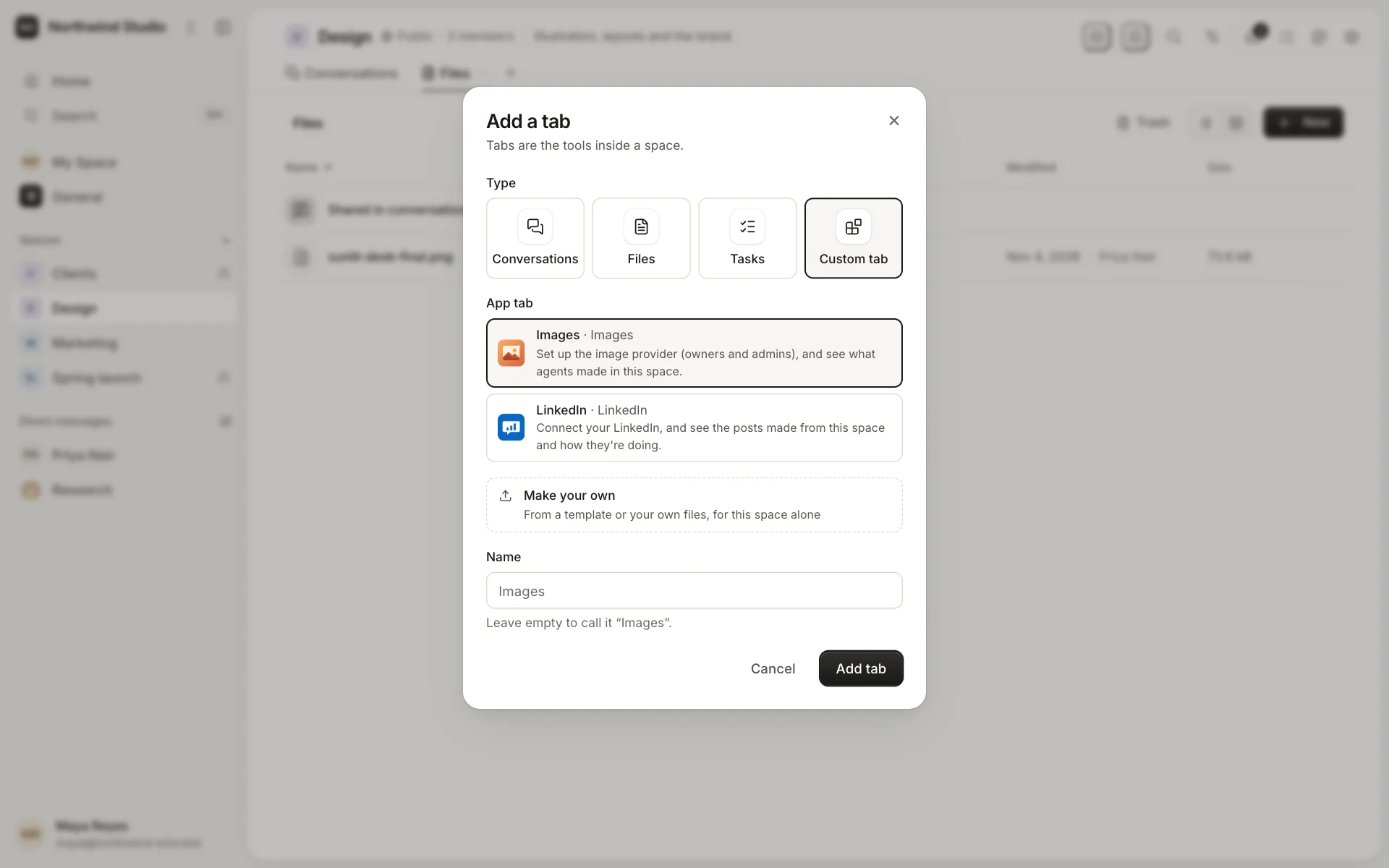
Tabs are the tools inside a space.
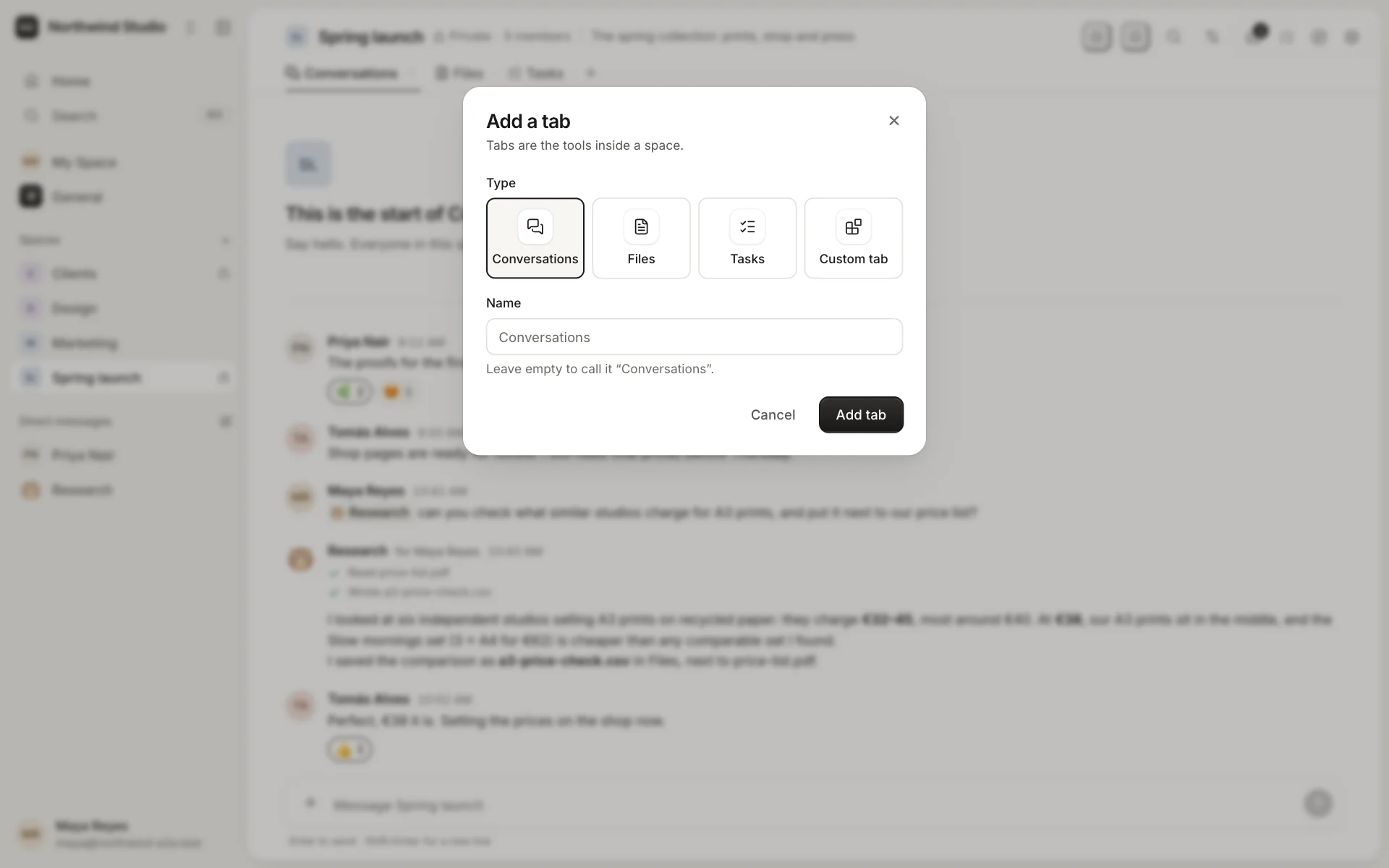
Every space starts with a conversation. Add the tabs it needs, as many as you like, and name, reorder, pin or hide them. Each one follows the space's members and permissions.
Conversations
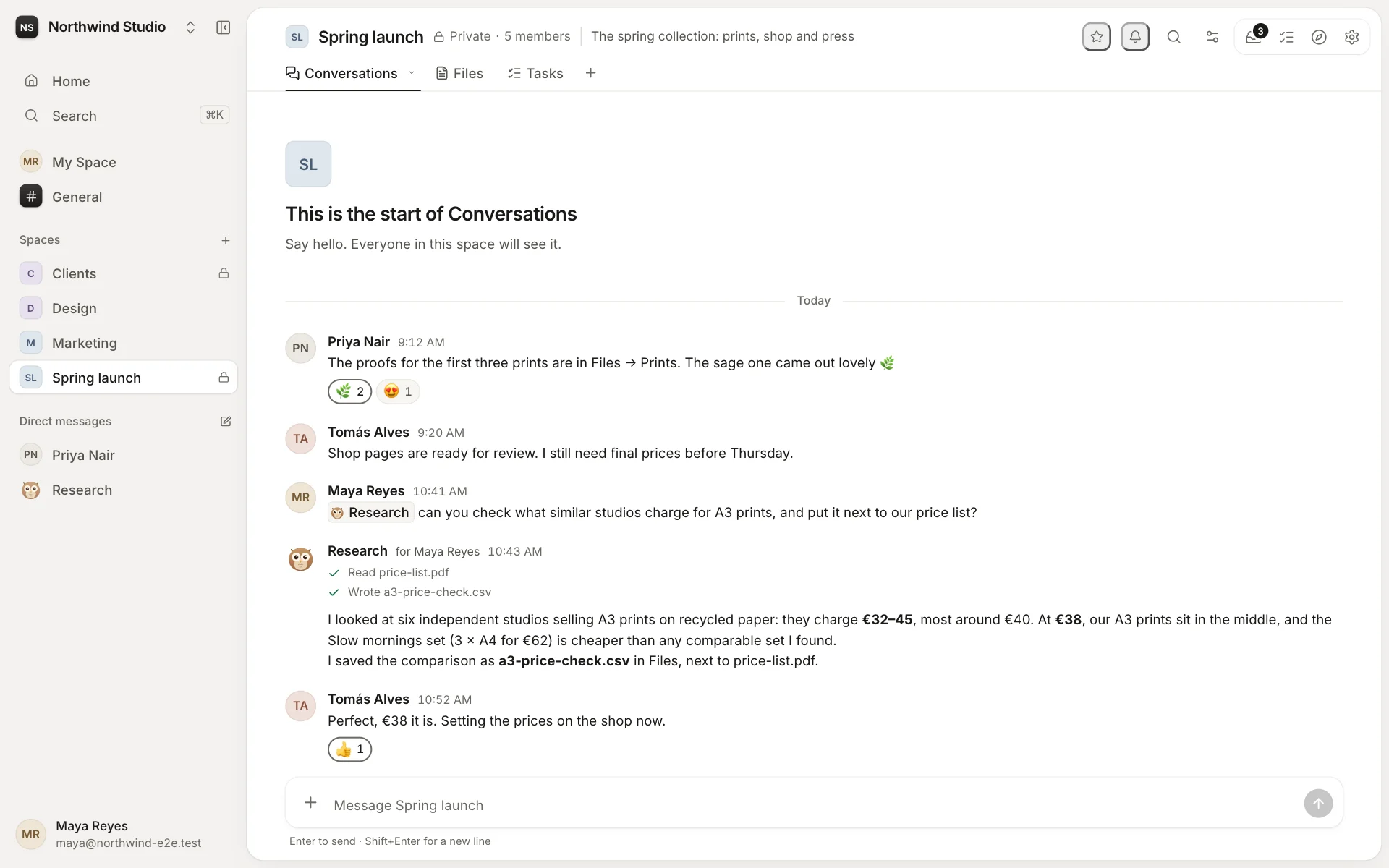
Where the team talks and agents answer. Threads keep side conversations tidy; reactions, mentions and the Inbox show what needs you; files and links show previews; and search finds any message. A conversation can be for announcements, where only admins post.
Files
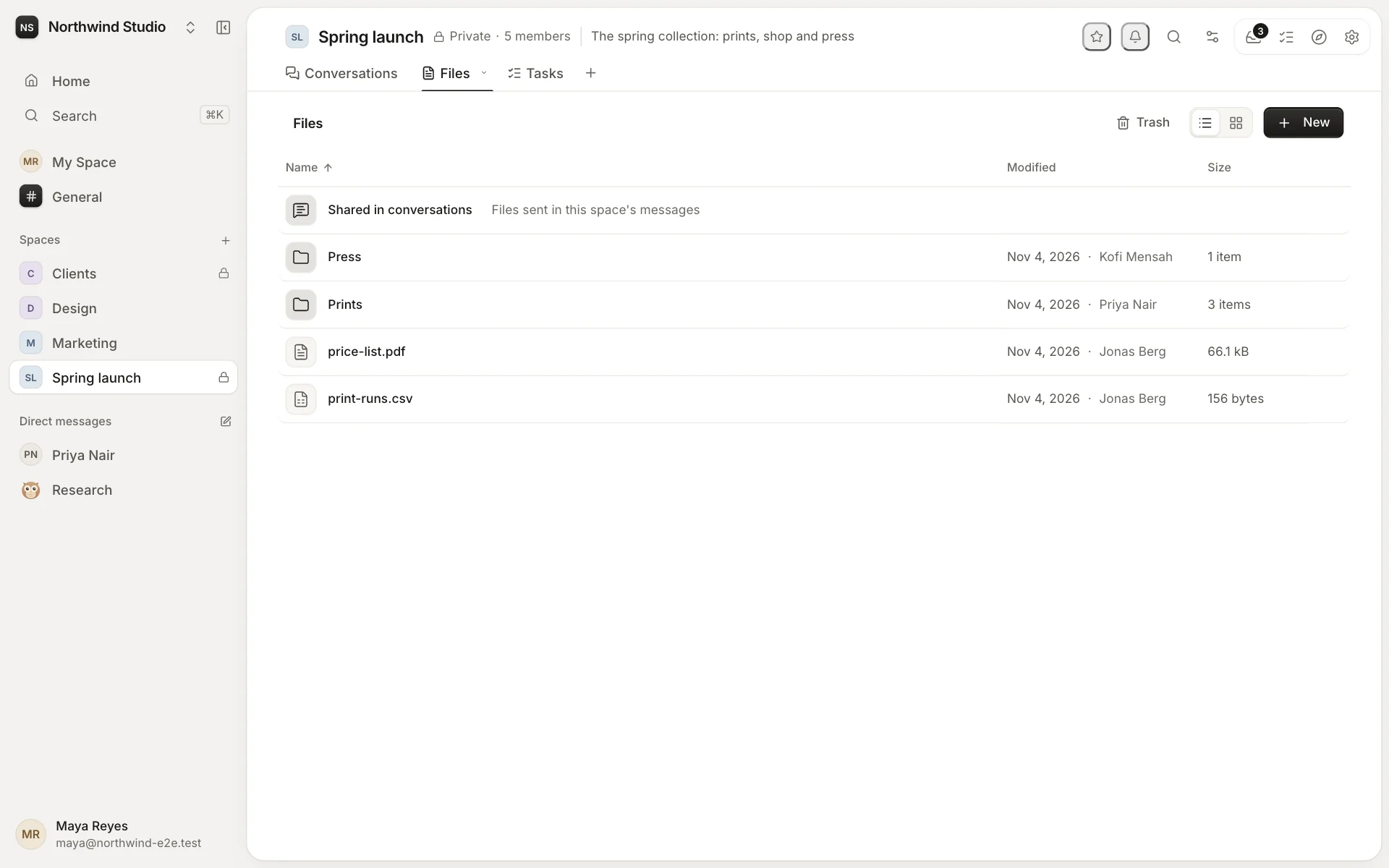
A space's files, in folders: upload, preview (images, PDFs, audio and video, Markdown, CSV and documents), keep versions, and bring back what was deleted within 30 days. Files shared in conversations are gathered there too, and search looks inside them. Agents read files and save what they make here.
Tasks
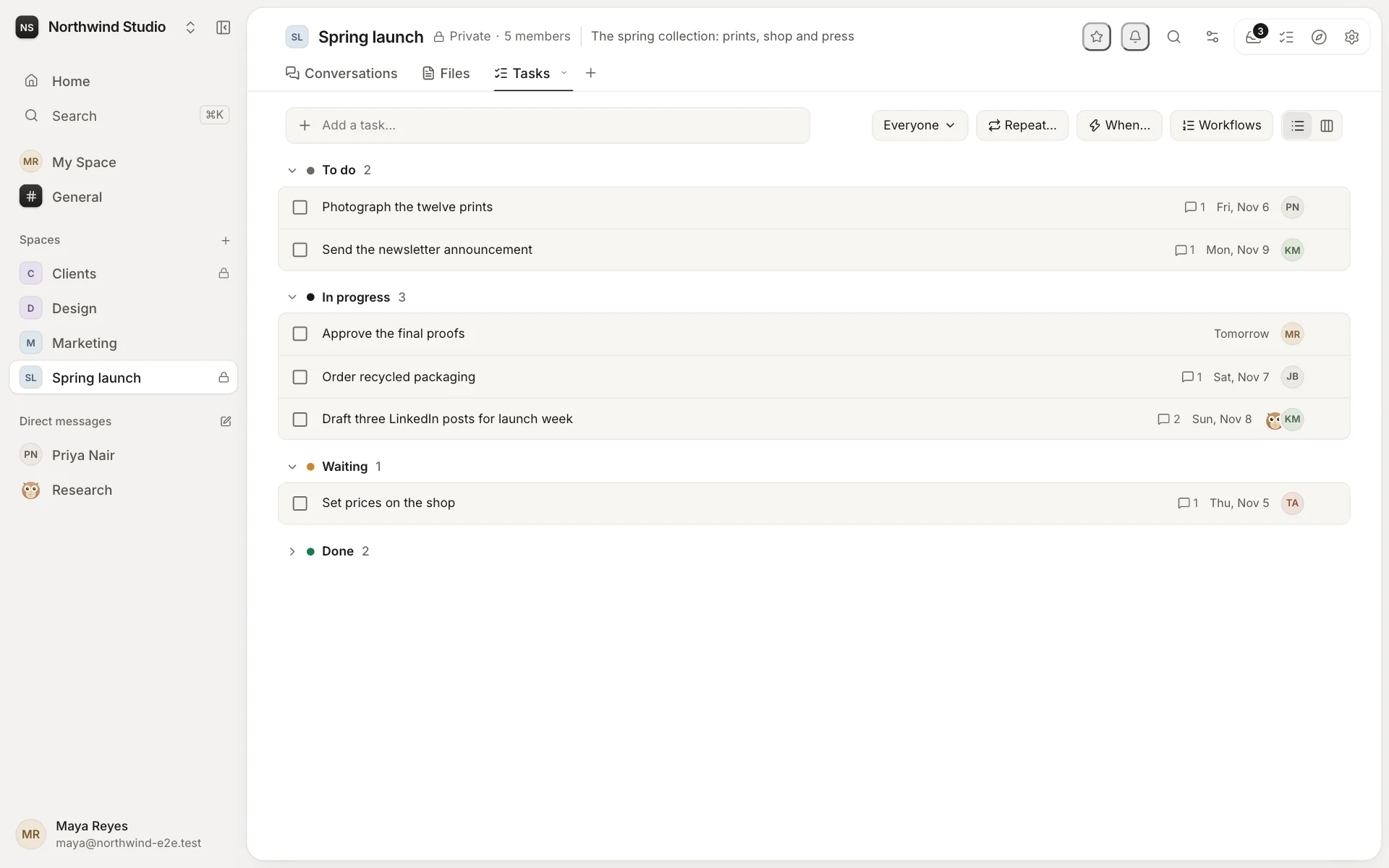
Work to do, as a list or a board: to do, in progress, waiting, done. Give a task to a person or an agent, with a due date and a thread of its own. Tasks can repeat, follow a workflow, or start when something happens: see Tasks & automations.
Custom tabs
The tool your team needs that isn't built in: a CRM, a dashboard, a booking calendar, a LinkedIn tab. A custom tab comes from an app. Your admins install it in Settings → Apps, from the marketplace or from its developer, and then anyone who manages a space's tabs can add it.
You don't need a developer either. Make your own starts a tab from a template, or from a folder of HTML, CSS and JavaScript, and you can edit it beside the tab. You can also ask an agent to make one: it shows you a preview, and the tab is added only once you approve it. See Apps.