 Tabs
Platform · Marketplace
Agents, apps and templates, ready to add.
The marketplace has agents, apps, and templates for a whole workspace, a single space, a tab or a home page. Tabs & Spaces reviews every version before it's listed. Add one in a click and everything it needs comes with it; publish your own in your workspace's name. Self-hosted deployments see the same catalogue.
What's listed
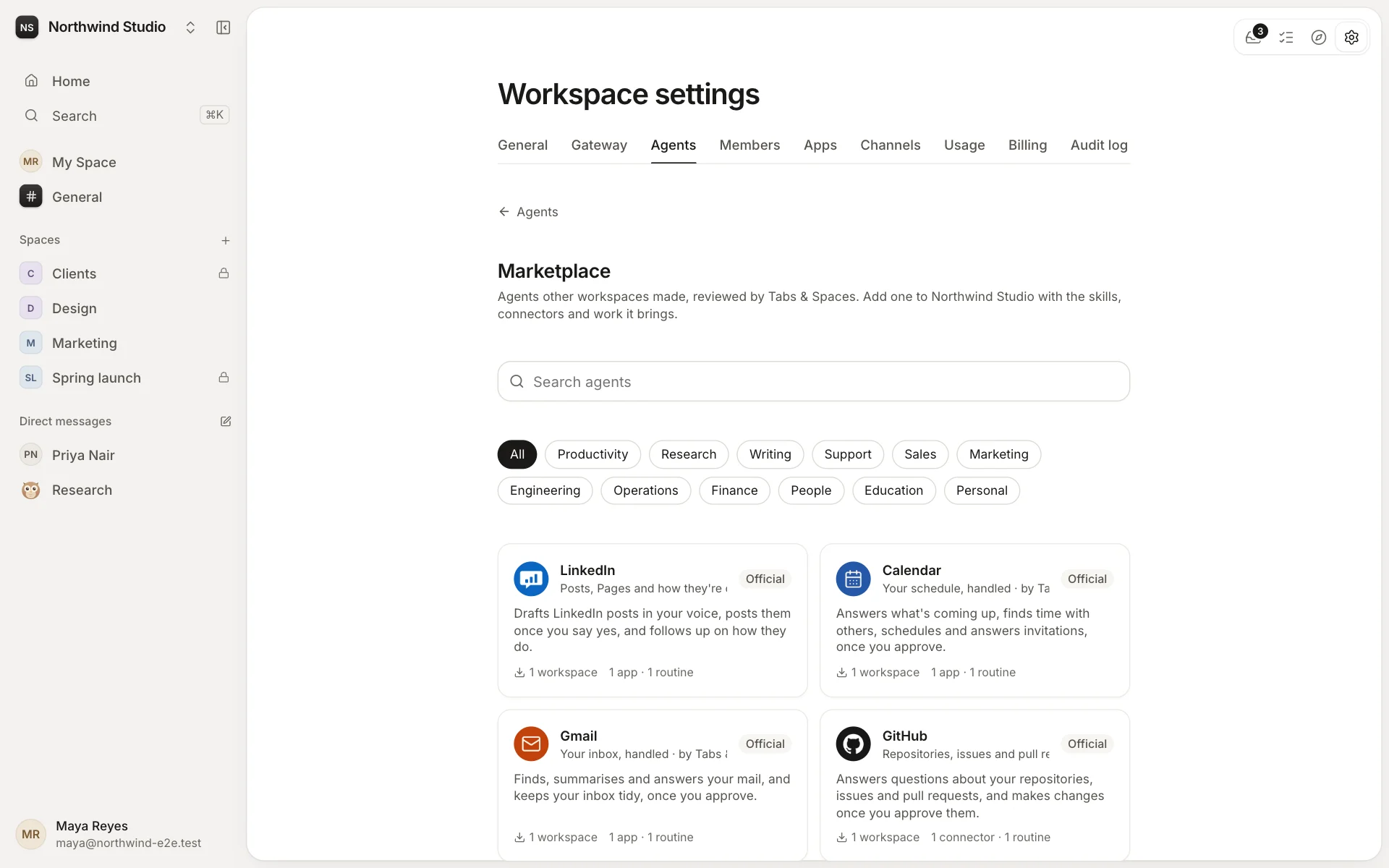
- Agents, with the skills, connectors, workflows, recurring tasks and triggers they bring.
- Apps: custom tabs, home pages, actions agents can use and events triggers start on. See Apps.
- Space templates: one space, set up, added to your workspace as a new space.
- Workspace templates: a whole workspace set up for a kind of work, chosen when you create one.
- Tab and home page templates: use one as it is, or make a copy to change.
Workspace owners and admins add them, in the app or from a listing's page on our website. Every part is set up as them, so their permissions apply and each step is on the workspace's audit log.
Adding an agent
Settings → Agents → Browse the marketplace, or Add to your workspace on its page on our website. Read what it does, its instructions and what it sets up, then add it:
- The agent is made with its name, title, description, instructions and face. It's yours to change like any other.
- Its skills and connectors are added for it; ones your workspace already has are shared, keeping their sign-in. A connector that needs a key asks for it; one that signs in with OAuth asks you to sign in.
- Its routines (workflows, recurring tasks and triggers) go in a space you choose, which it joins, with the tabs they need.
Anything that couldn't be set up is listed when it's done, so you can finish it on the agent's page. See Agents.
Publishing an agent
An agent your team relies on can work for others. On its page, Marketplace → Publish…: you tick what goes in (its instructions and face, its skills, its connectors and the routines of one space) and write its listing, with categories, an account of it and up to six screenshots.
It never carries its model, its memory, connectors' keys or anything else from your workspace: your spaces, people and Tabby become placeholders that the workspace adding it fills in. Tabby can't be published; every workspace has one.
Adding an app
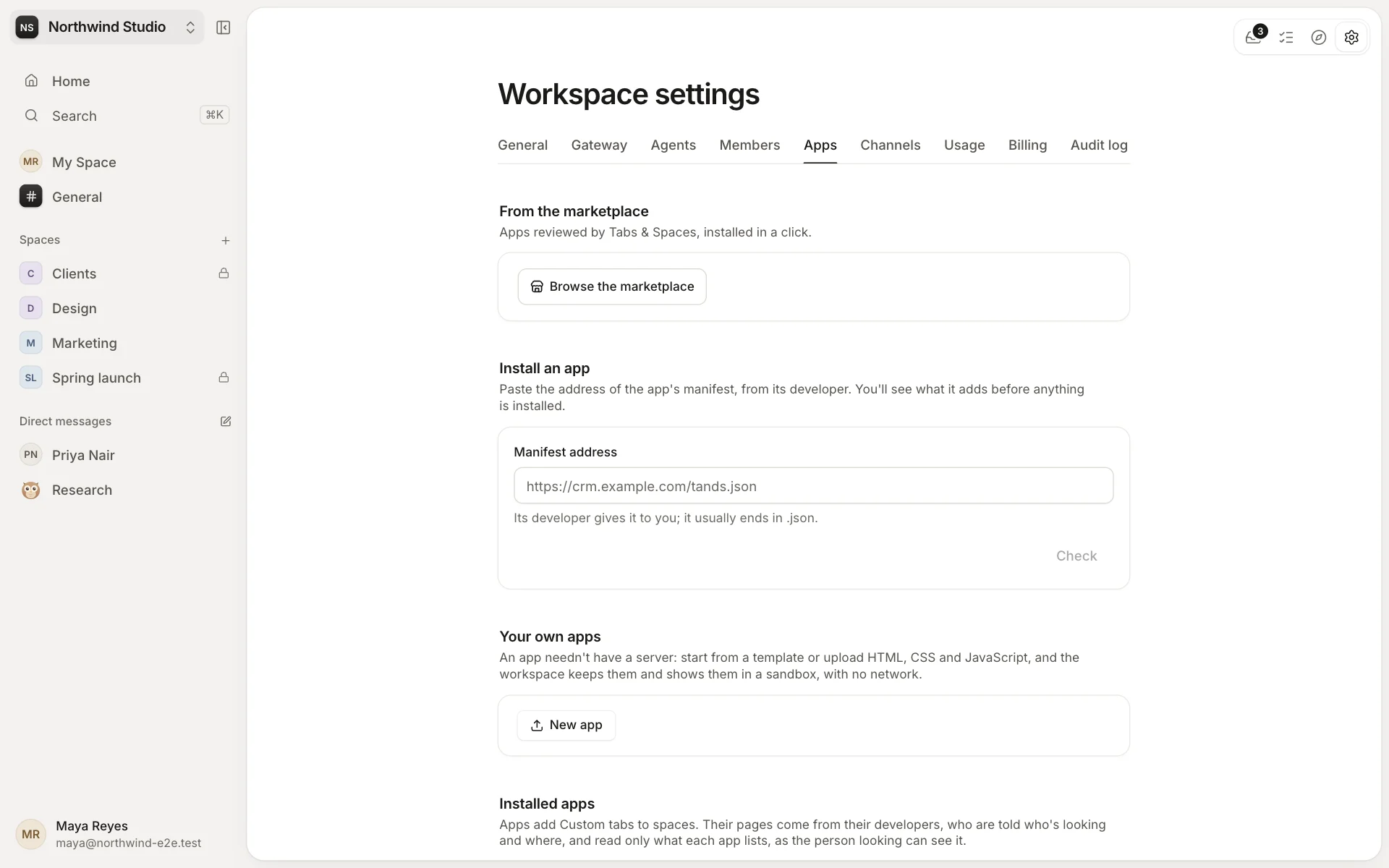
Settings → Apps → Browse the marketplace: installing an app from there is installing it from the manifest we reviewed. Choose a space for its tab now, or let anyone who manages a space's tabs add it later. Its actions and events are then ready for agents and triggers.
A listing shows its developer's privacy policy. Check for updates takes the newest version we've approved, not whatever its address serves today. Tab and home page templates are apps without a server: they stay as reviewed, or you Make a copy to change.
Publishing an app
In a workspace where it's installed, open the app in Settings → Apps and choose Publish…: you show it's yours by putting the workspace's token in your manifest, then write its listing, with a privacy policy, and send it for review.
Workspaces that install it get exactly the version we approved. Later versions go through review too; send them from the page or, once it's listed, with tands publish from your computer or CI.
Adding a space
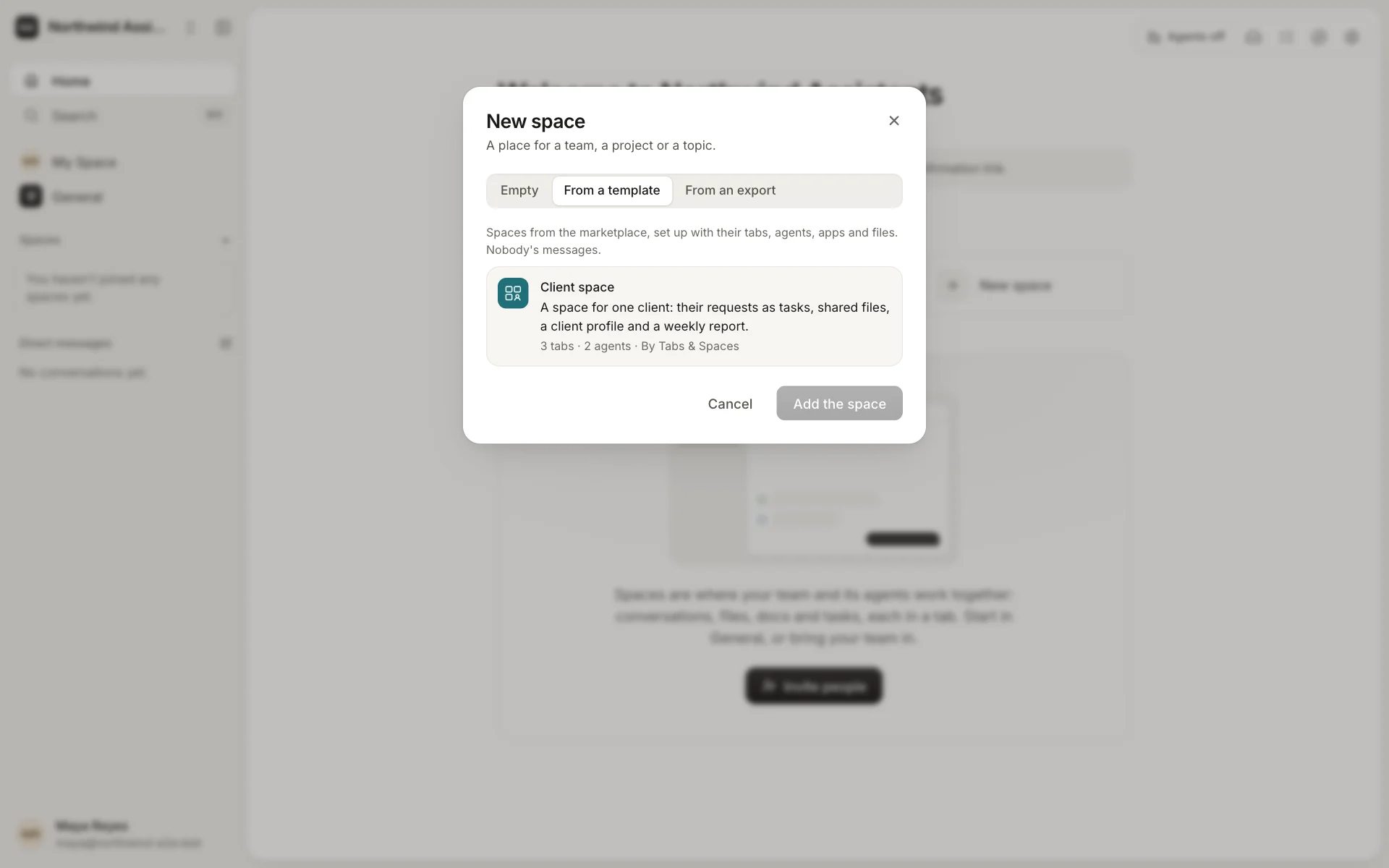
New space → From a template adds a space from a space template, set up with its tabs, agents, apps, starter files and routines: a client's own space, say, with the client as a guest. Owners and admins add them and name the space as they like; Add it to your workspace on its page on our website opens the same dialog.
If your workspace already has an agent by the same name, that's the one who works there; the others are made. Add the same template again for the next client: each is a space of its own. Your workspace's colours and Home stay as they are.
Publishing a space
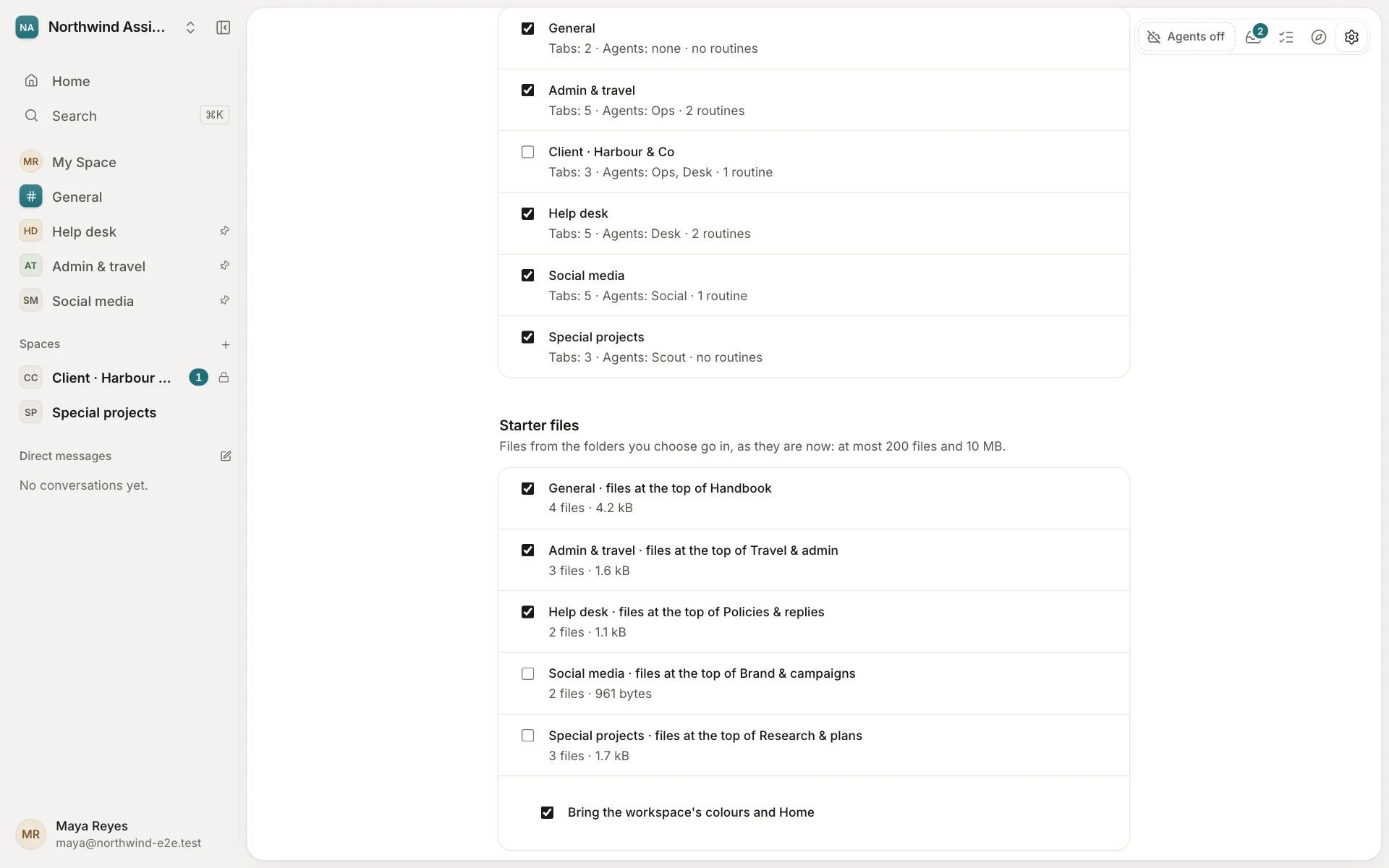
Share a space's setup from its Settings → Export & import → Publish as a template: its tabs, agents, routines and apps from the marketplace, and the files of the folders you pick. Never its messages, people, tasks or history. General, My Spaces and direct messages can't be published. (To move a space with its history, export it instead.)
Starting a workspace
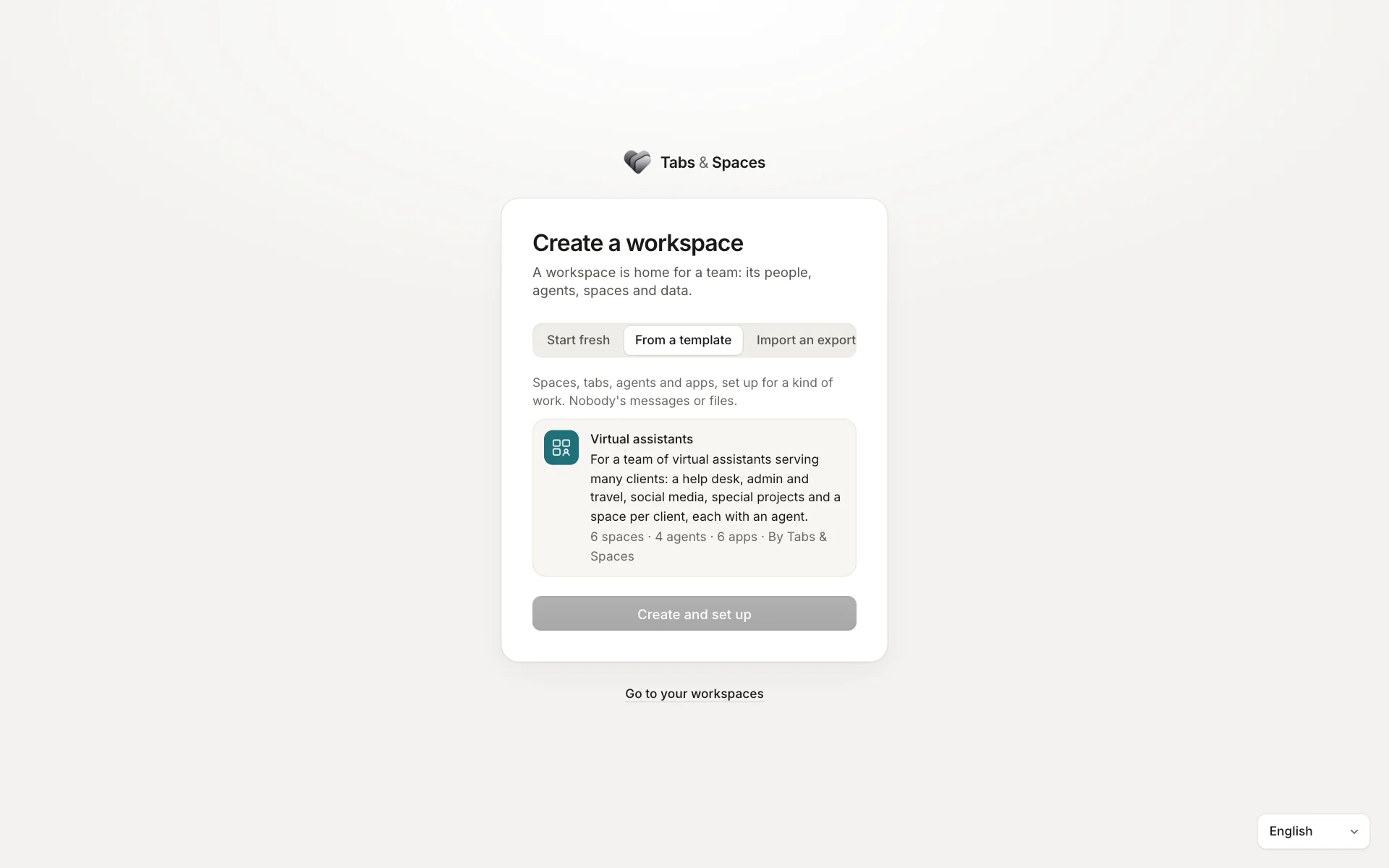
Create workspace → From a template, or Start a workspace from it on its page on our website, sets up a new workspace from a workspace template: its spaces and tabs, agents with their instructions, apps from their own listings, starter documents, recurring tasks and triggers, colours and Home, ready in a few seconds.
Nobody's messages, people or files come with it: you're its owner, and you bring your own team. Connectors that need a key wait for you to add one.
Publishing a workspace
Owners and admins share their workspace's setup from Settings → General → Data → Publish as a template. Choose the spaces it brings, the folders whose files a new workspace starts with, and whether your colours and Home come too. Each space shows its tabs, agents and routines, and what stays out (a tab of an app that isn't in the marketplace, say), before anything is sent.
Reviewed, in your name
Every listing and every new version is reviewed by Tabs & Spaces before it's listed; we email whoever sent it when we decide. Listings show the workspace's name as their publisher, never the person who sent it. The first time, an owner or admin accepts the publisher terms for the workspace.
Publishing needs the deployment to be registered with Tabs & Spaces: our cloud is, and a self-hosted deployment registers in Deployment settings → Support. Take it out removes a listing at any time; workspaces that added it keep their copy.