 Tabs
Use cases · Virtual assistant teams
Give every virtual assistant a team of agents.
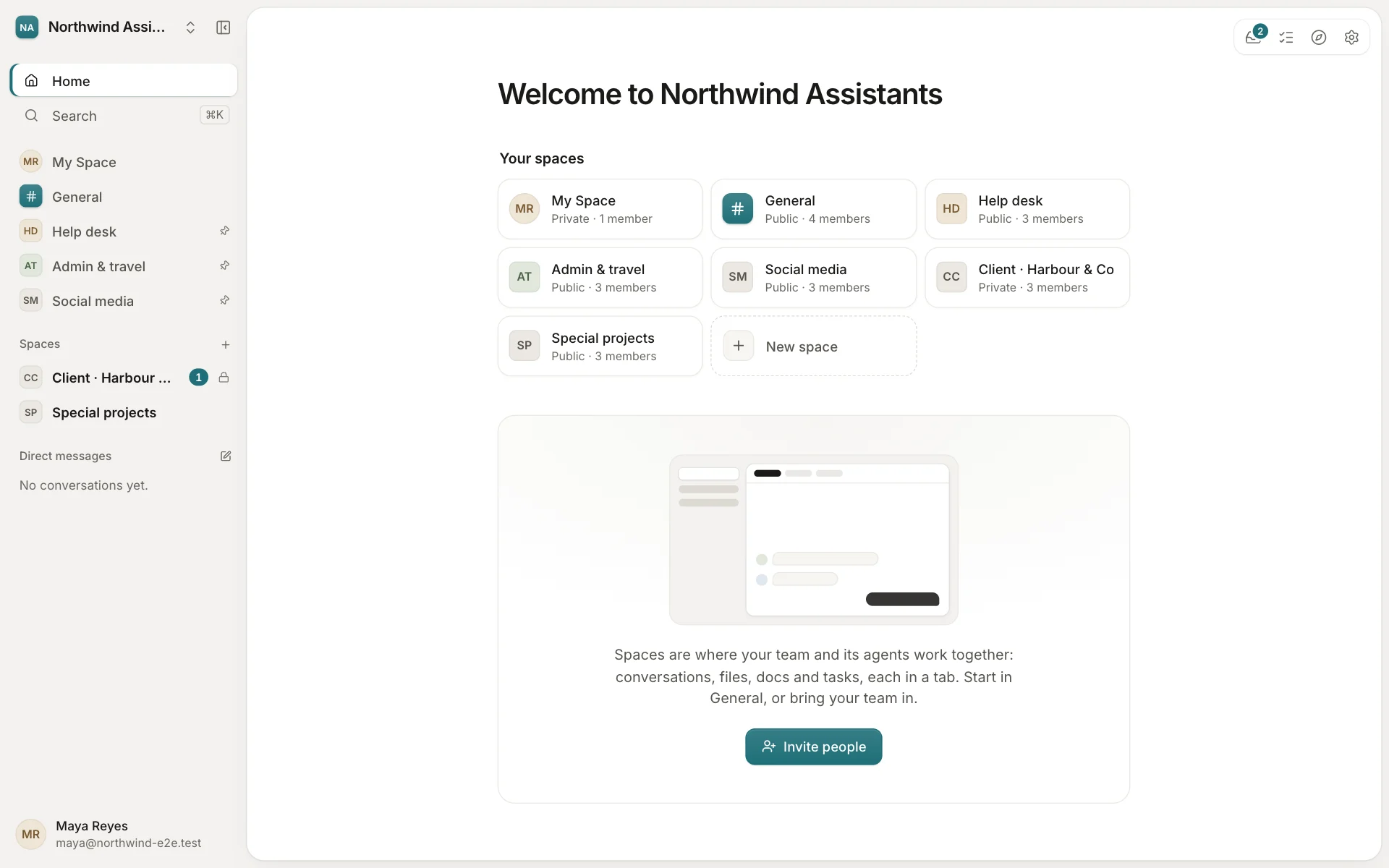
Your assistants keep their clients' inboxes, calendars, customers and campaigns moving. Tabs & Spaces gives each of them agents that draft the replies, log the receipts, write the posts and do the research, and a space for every client, who sees only their own. Nothing goes out without a person's yes.
Customer service
A help desk where the first draft is already written.
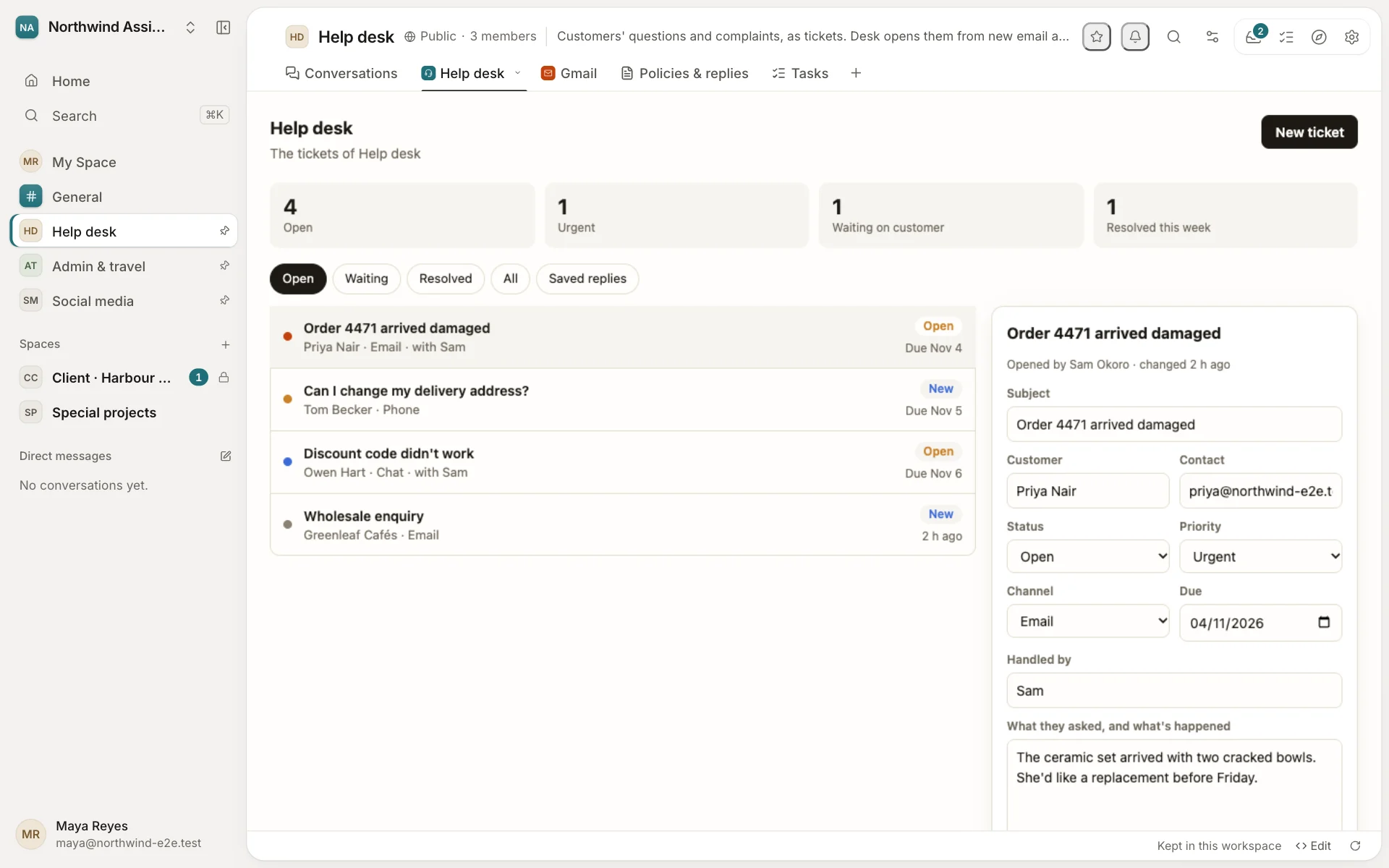
Customers' questions, orders and complaints become tickets in the Help desk tab: who asked, how they reached you, how urgent it is, who's handling it and when it's due. Answers you send often are saved replies.
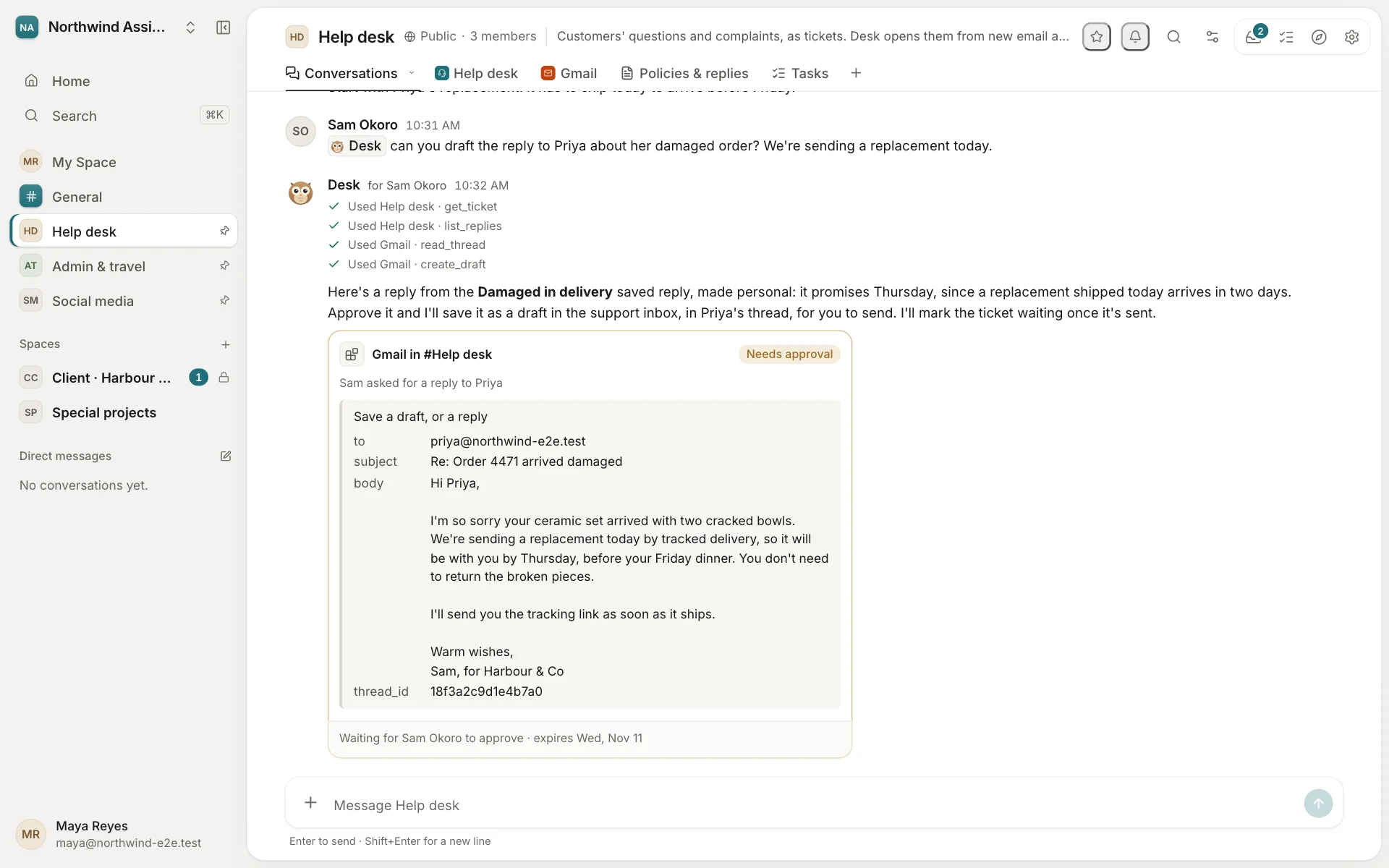
- New email starts the work. When mail arrives in the inbox you share with the space, Desk opens a ticket and drafts the reply from your saved ones and the client's policies.
- Your assistant decides. The draft waits under Desk's answer for a yes. It's saved in Gmail, in the customer's thread, for the assistant to send.
- Every morning, the queue. At 08:30 Desk posts what's urgent, overdue and waiting on customers, so the day starts with the right ticket.
Try asking @Desk what's urgent today?
Administrative support
Email, calendars, travel and expenses, without the typing.
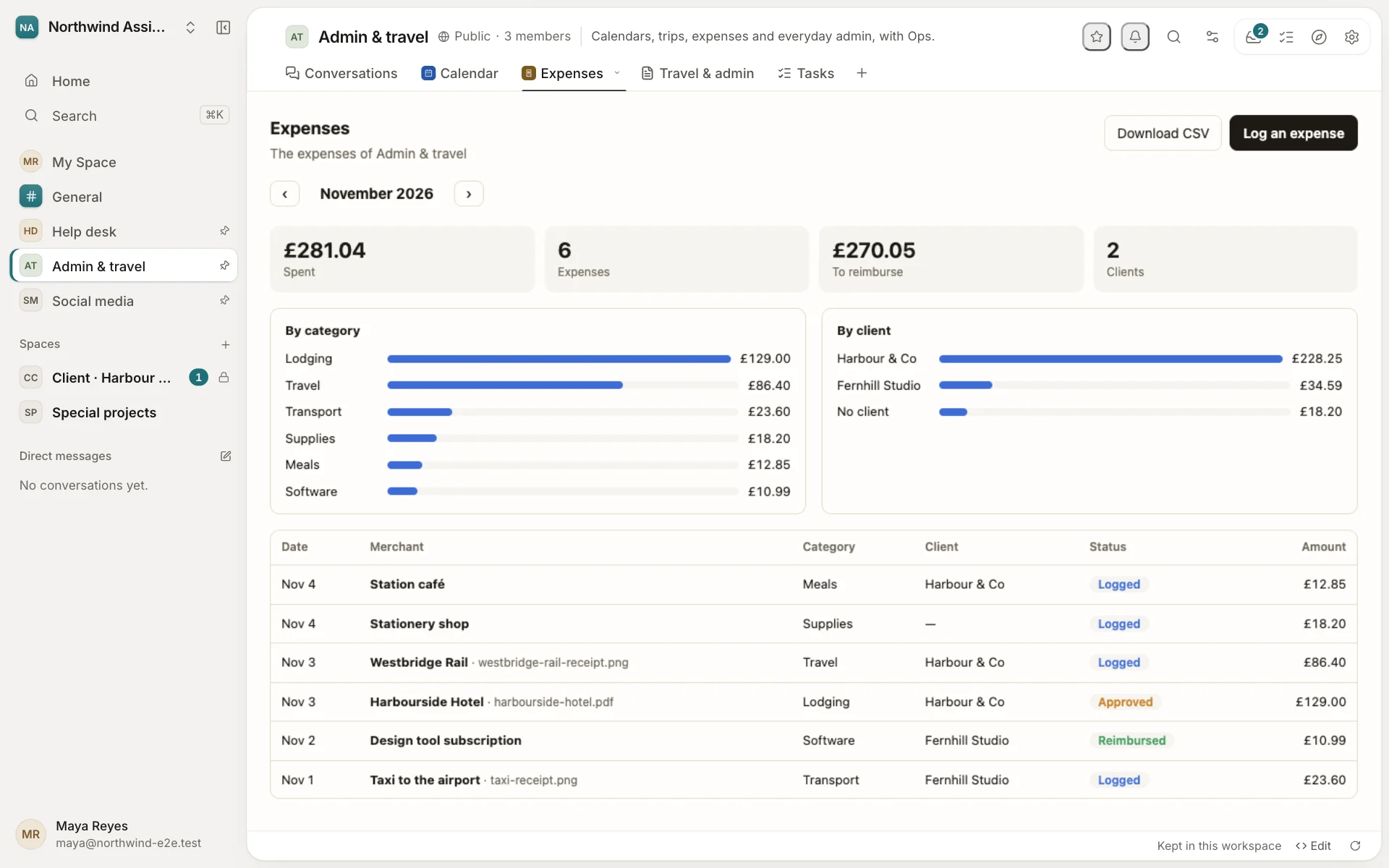
In Admin & travel, Ops works through each assistant's own Google Calendar, writes itineraries as documents, and keeps Expenses for every client.
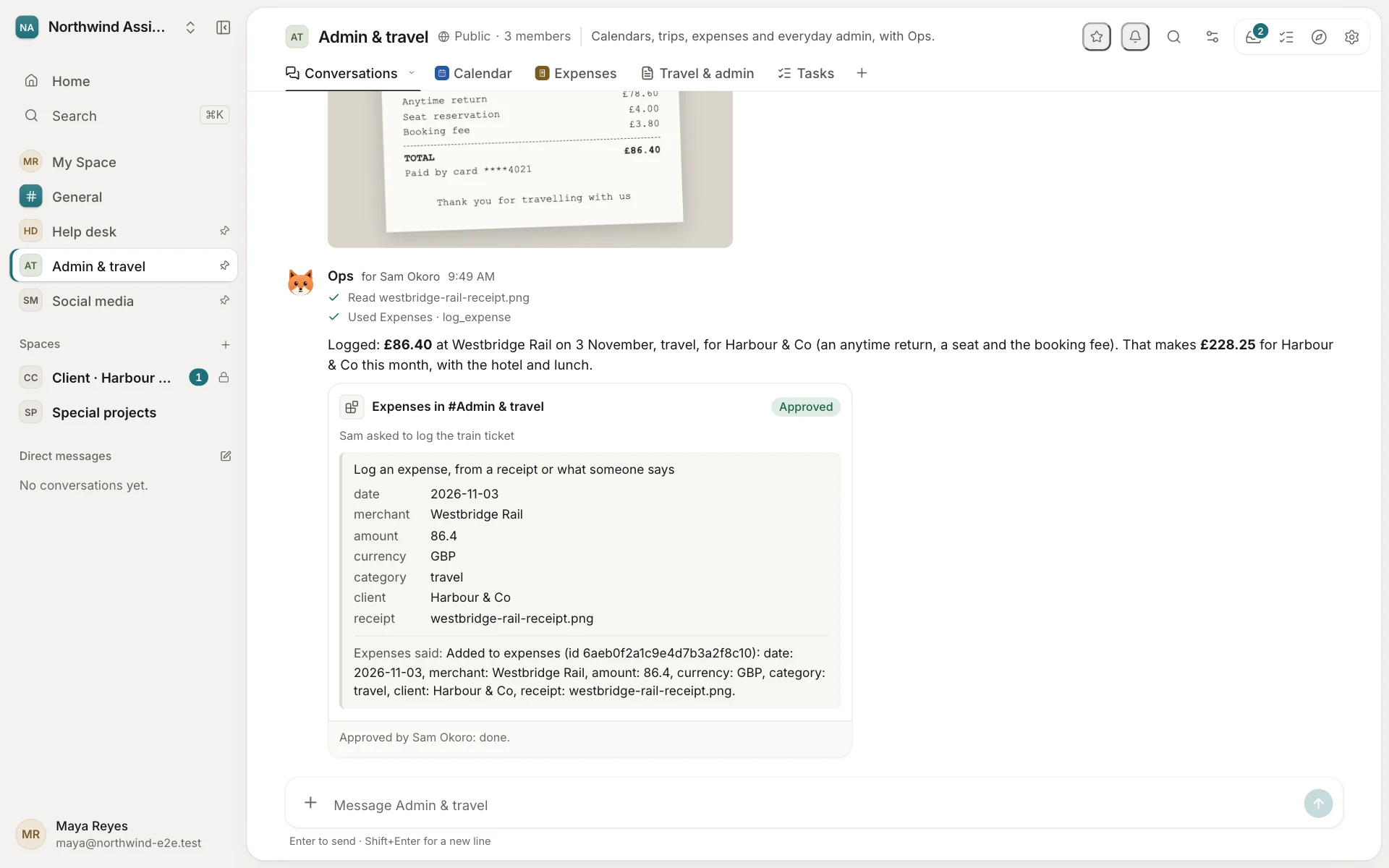
- Receipts in, expenses out. Drop a photo of a receipt in the conversation; Ops reads it and logs the date, merchant, amount, category and client once you say yes.
- Trips planned, not booked. Ops compares trains and hotels, drafts the itinerary in Files and puts the trip in the calendar. Your assistant books.
- The week ahead, every Monday. Meetings, travel and what to prepare, and on Fridays what's still to approve and reimburse, by client.
Try asking @Ops log this receipt for Harbour & Co
Special projects
Research, events and projects, written up for you.
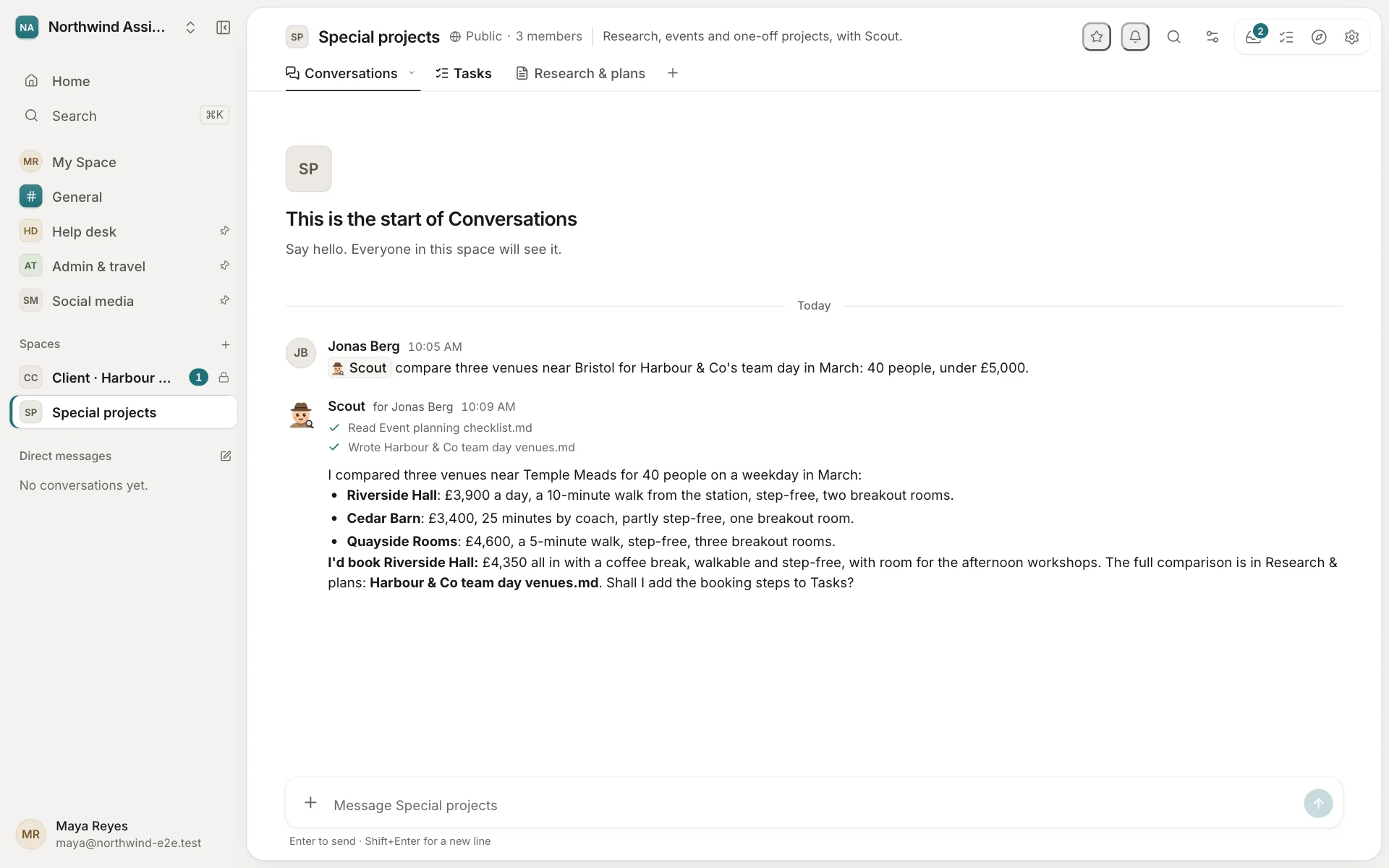
In Special projects, Scout researches, compares options and writes the document: a summary, a comparison table, a plan. Event checklists and research briefs are in Files to start from.
- Options compared, with a recommendation. Venues, suppliers, tools: on price, location and what matters to the client.
- The document, in Files. Markdown, Word, a spreadsheet or a short deck, made on Scout's own computer.
- Plans as tasks. Owners and dates, from the event planning checklist.
Try asking @Scout compare three venues near Bristol for 40 people
Client spaces
A space for each client, who sees only theirs.
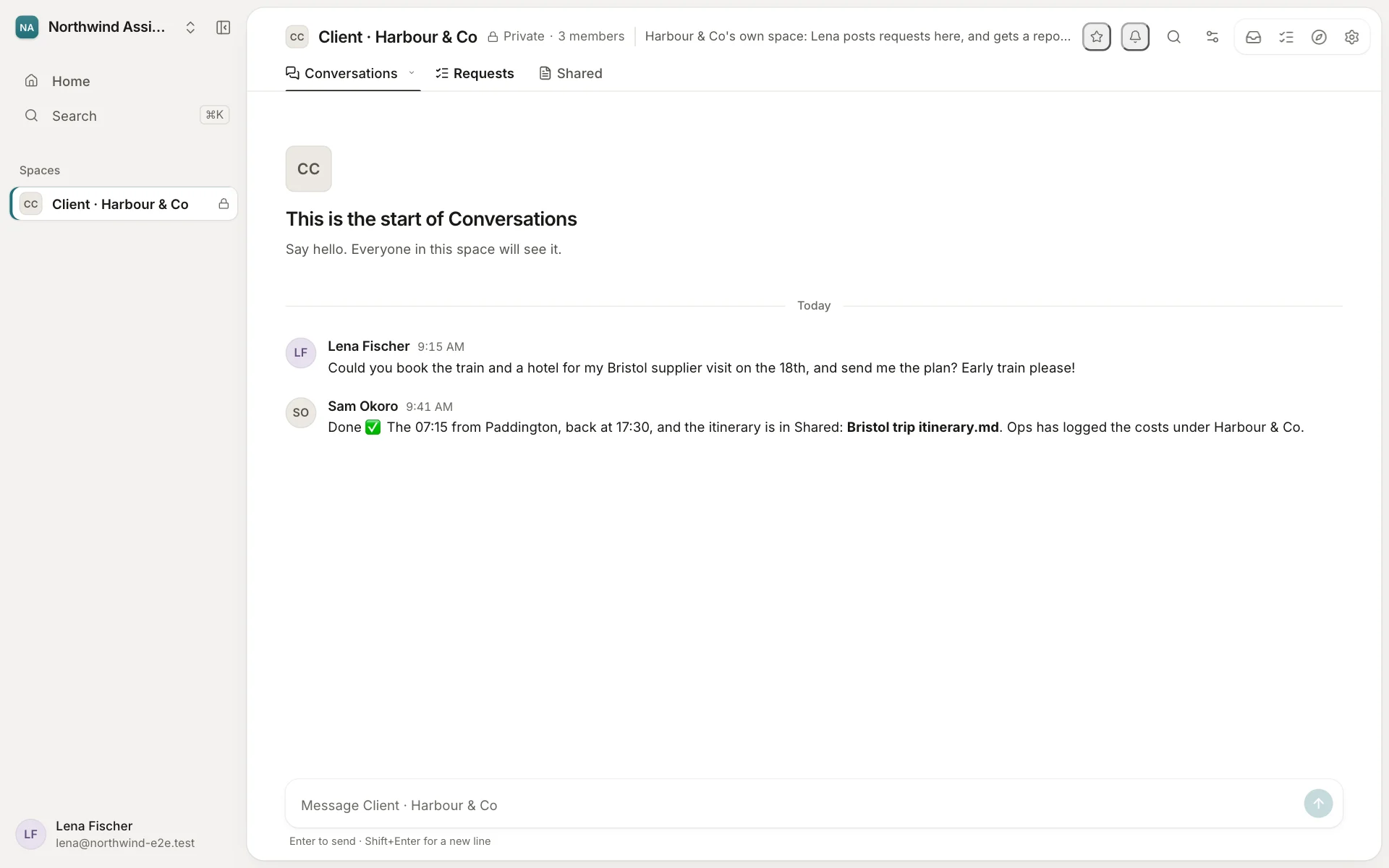
Invite a client as a guest to their own space: they post requests, follow their tasks and find the files you share. They don't see your other clients, or your team's own spaces.
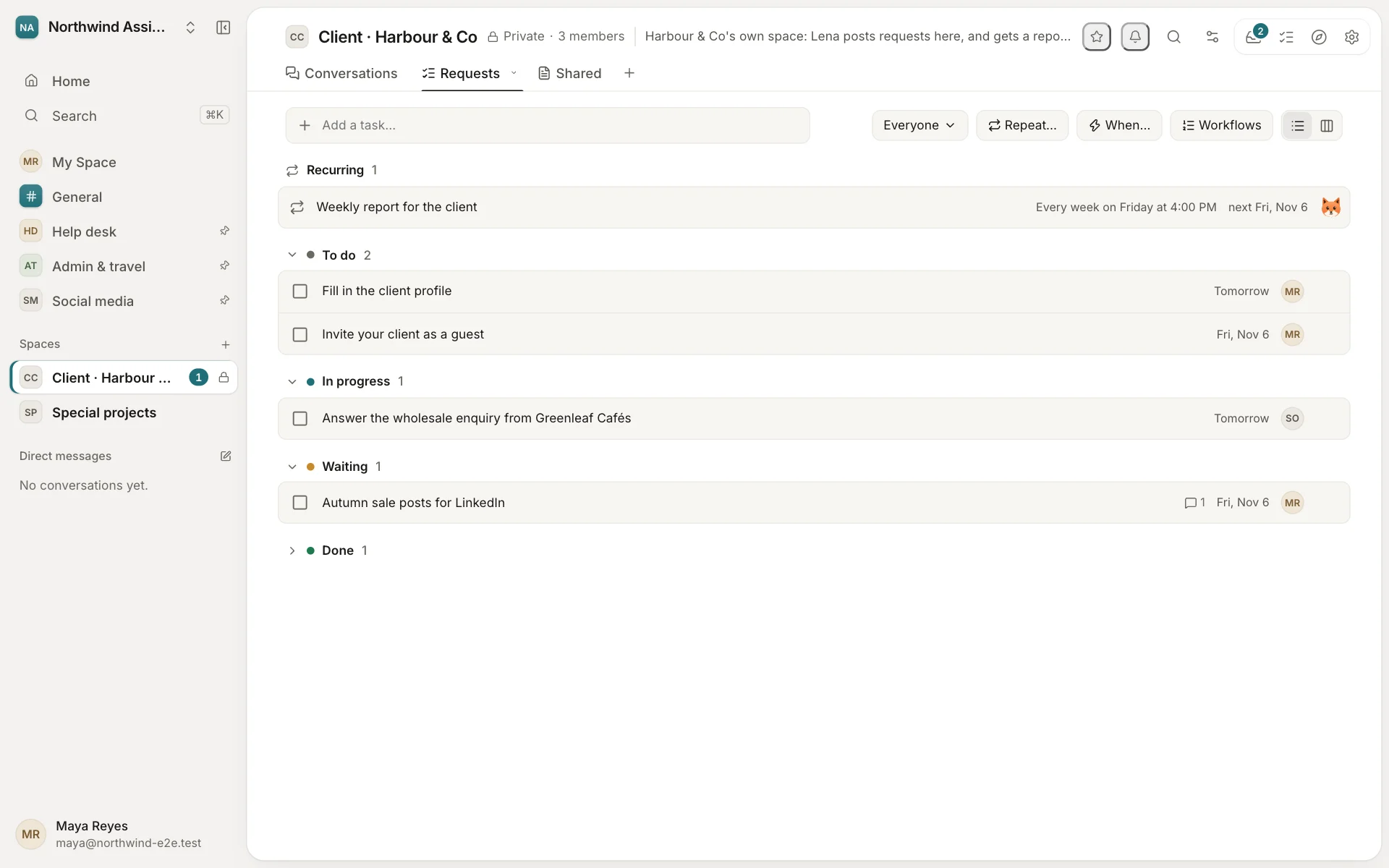
- Requests become tasks, with who's handling each one and when it's due.
- A report every Friday. Ops drafts what was done, what's in progress and what's waiting on the client; your assistant checks it before the client reads it.
- Their profile, for everyone. Hours, tone of voice, policies and who to escalate to, read by people and agents before they work for them.
Try asking @Ops write this week's report for Harbour & Co
The template
Everything above, set up in a minute.
Start a workspace from the Virtual assistants template and it's made for you: spaces, tabs, agents, apps, documents and routines. Nobody's messages or files come with it: it's yours from the first minute.
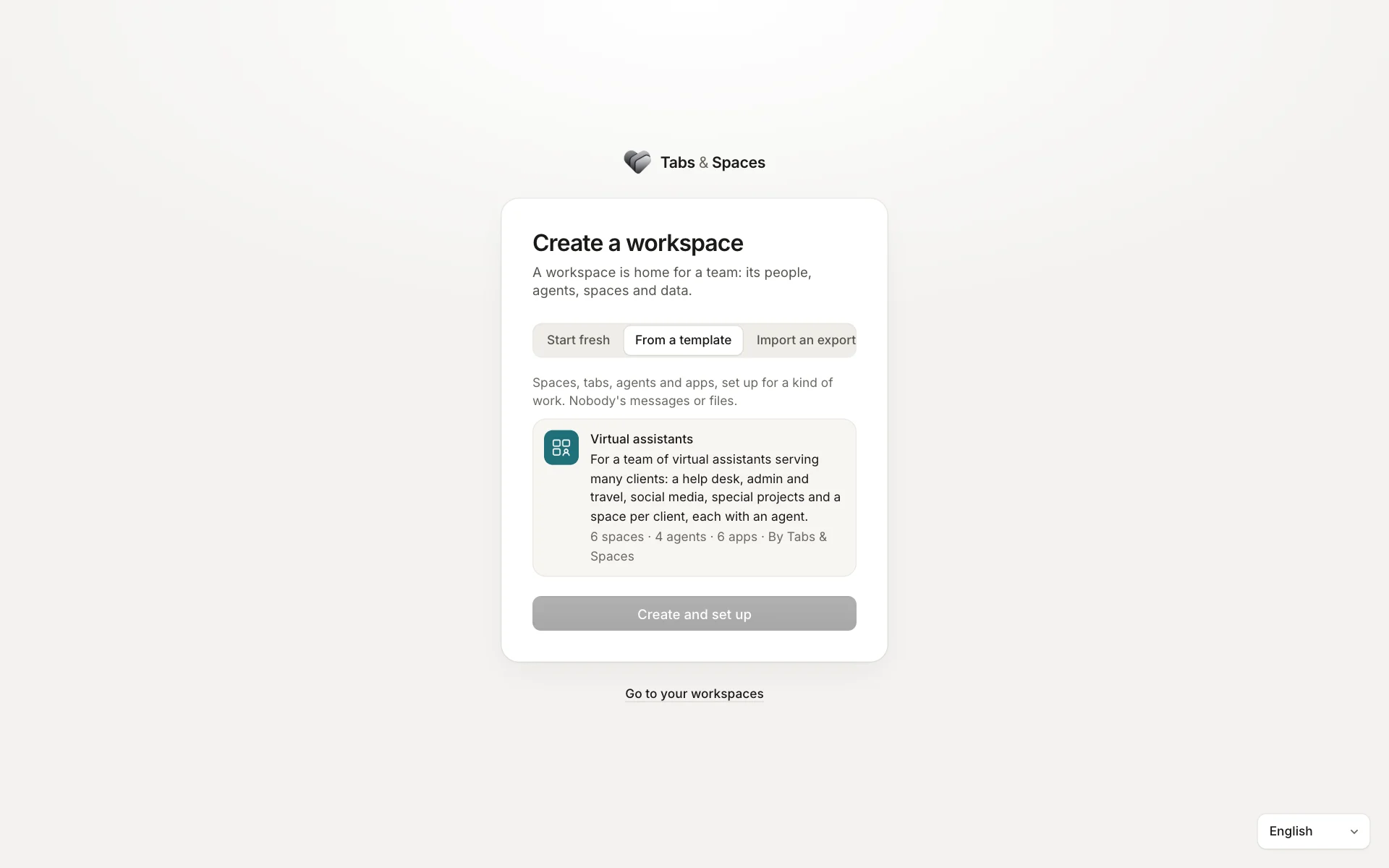
- Start from the template on tabsandspaces.app, or on your own deployment (Create workspace → From a template).
- Connect your accounts: each assistant their Google account and LinkedIn; an owner the workspace's image key.
- Bring your team and your clients: invite assistants as members, and each client as a guest to their own space.
What it doesn't do yet
- Customer enquiries come in by email. Customers who message on WhatsApp or a website chat can't reach your agents unless they're members of the workspace.
- Social posting is LinkedIn today. For other networks, Social drafts the posts and images for your assistant to publish.
- Ops researches trips and writes itineraries; it doesn't book or pay for anything.
- Each assistant connects their own Google account and LinkedIn, and an owner adds the workspace's OpenAI or Google key for images.
Social media management
Posts in each client's voice, with their images, posted when you say so.
In Social media, Social reads each client's brand voice and campaign brief, drafts the posts, makes the images with your own image key, and keeps the content calendar in Tasks.
Try asking
@Social draft two weeks of posts from the campaign brief